
Workspace and design / NEW IN 3.0
Make the workspace yours.
Use a refreshed light or dark interface, carry workspace configuration between installations, and connect through modern AWS profiles and custom certificate settings.
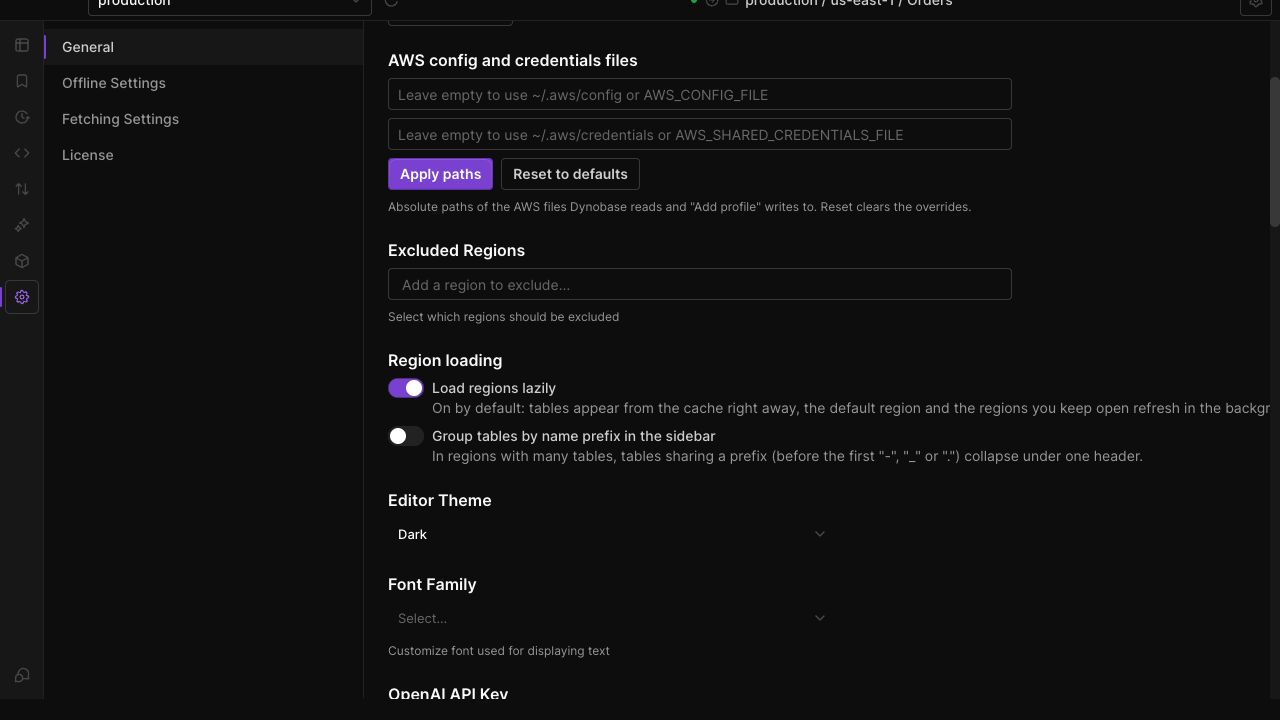
Choose your app theme
Set light or dark mode in Dynobase. The app's selected theme controls the grid and dialogs even when the operating system uses a different theme.
Carry your workspace
Use workspace import and export in Settings to transfer supported Dynobase configuration. Review what you import before applying it.
Use your AWS setup
Connect with modern AWS CLI sso_session profiles and supported custom CA configuration. Keep your AWS credentials in the profile configuration on your machine.
IN THE APP
How it works
Open Dynobase and follow these steps to use workspaces, themes and aws sign-in.
- 01
Set your preferences
Open Settings and choose your theme, region-loading behavior and other workspace preferences.
- 02
Transfer a workspace
Use the workspace export or import action and review the configuration you are moving.
- 03
Authenticate when needed
When an SSO profile needs a fresh login, select Authenticate for that profile and complete the AWS browser flow yourself.