
Automate work / NEW IN 3.0
Give your coding tools DynamoDB context.
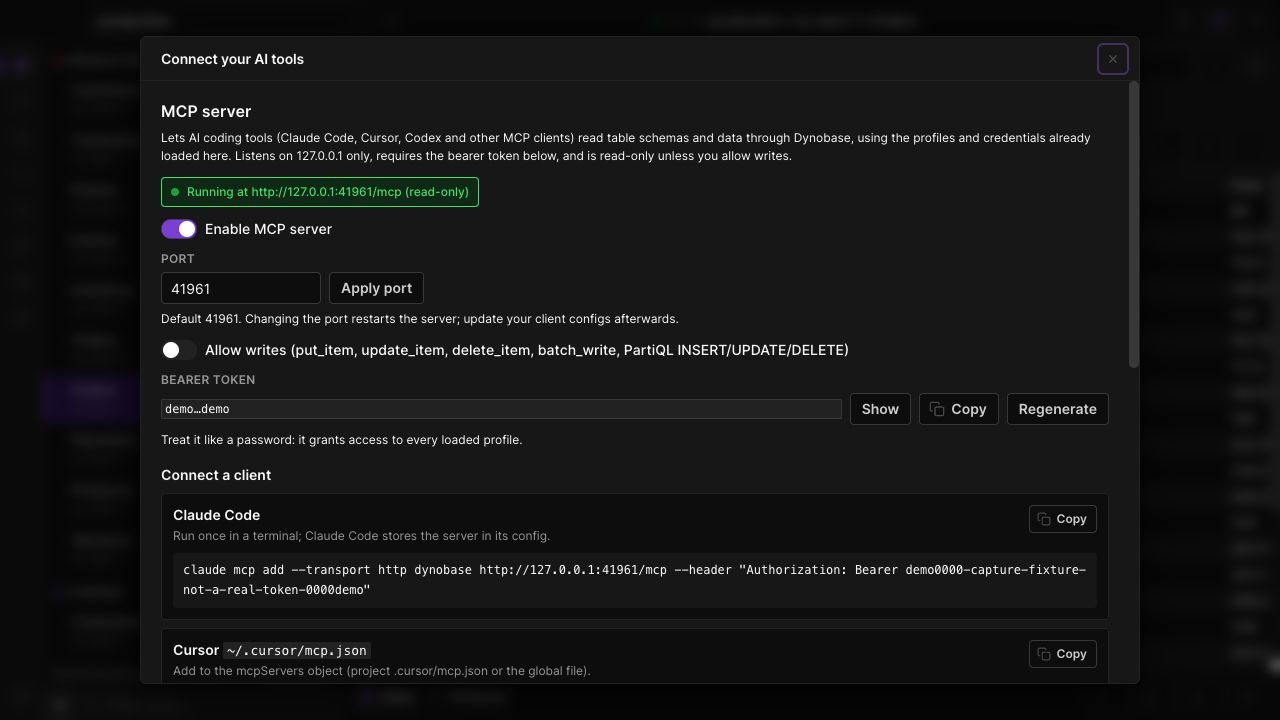
Connect compatible MCP clients to the running Dynobase app. Let them inspect tables and query data through your existing AWS profiles, with writes disabled by default.
Reuse your AWS profiles
Clients can discover loaded profiles, list tables, inspect schema and request data through Dynobase. You do not need to copy AWS keys into each client.
Start with read access
Item-write tools remain blocked until Allow writes is enabled. AWS permissions continue to apply to every request.
Connect locally
The token-protected HTTP server listens on localhost. Copy a setup snippet for your client and review actions in Dynobase's History.
IN THE APP
How it works
Open Dynobase and follow these steps to use mcp server for ai tools.
- 01
Enable the server
Open Settings, General, then MCP server. Enable it and check that the local server reports a running state.
- 02
Configure your client
Copy the client configuration and bearer token into your chosen MCP client. Use a supported bridge for clients that require stdio.
- 03
Set the access you need
Leave Allow writes off for inspection and read queries. Enable it only for workflows that should be able to modify items.