
Automate work / NEW IN 3.0
Bring exported data back into DynamoDB.
Prepare an S3 import with format detection and support for converting Dynobase exports into a compatible import format. Review the destination before starting the import.
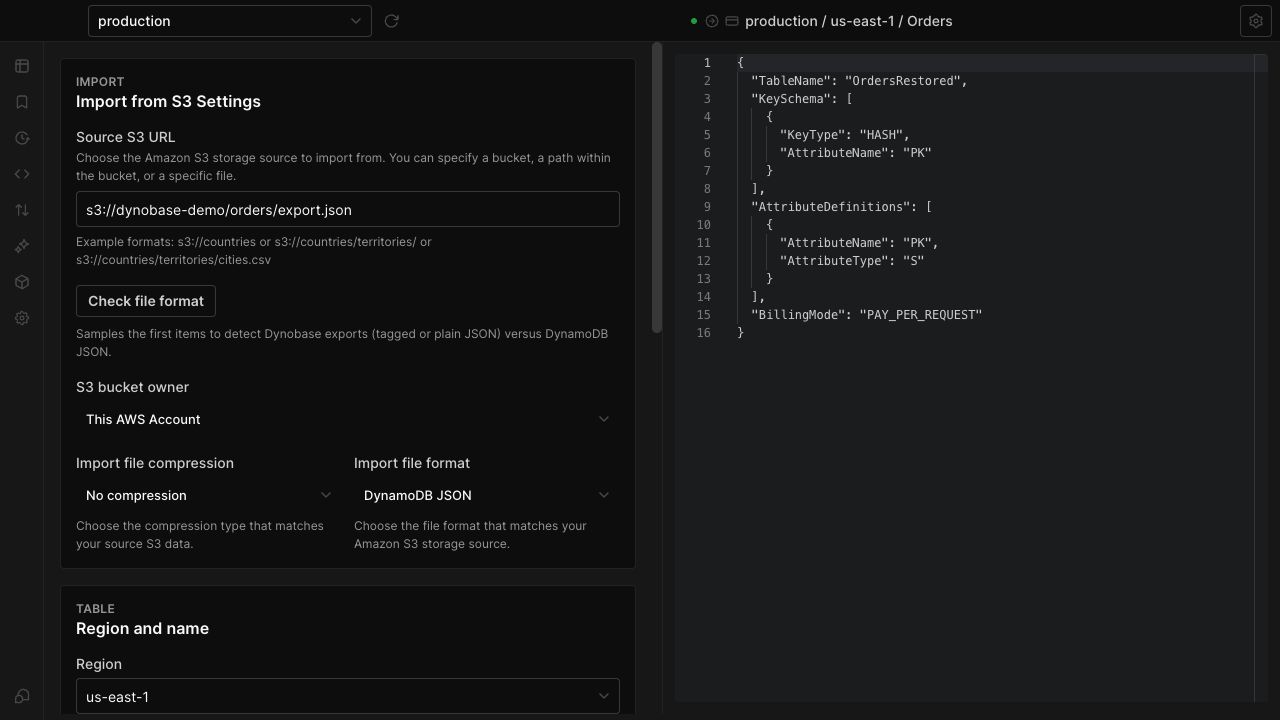
Identify the input format
Use format detection to distinguish supported data formats before configuring the import, rather than guessing from a file extension.
Reuse Dynobase exports
Convert supported Dynobase export data for the S3 import workflow, with the required format made explicit.
Review the target table
Configure the new table's name and keys and inspect the import request before submitting it to AWS.
IN THE APP
How it works
Open Dynobase and follow these steps to use s3 import and format detection.
- 01
Open the S3 import workflow
Start the import flow and choose the S3 source or supported conversion path for your exported data.
- 02
Review format and schema
Check the detected or selected format, source location and destination table key definitions.
- 03
Start the import
Review the settings, confirm the import request and inspect the operation's status.