
Explore data / NEW IN 3.0
Turn a nested value into a filter.
Explore an item's maps and lists, filter by a nested value, and bring the attributes you care about into the data grid as saved columns.
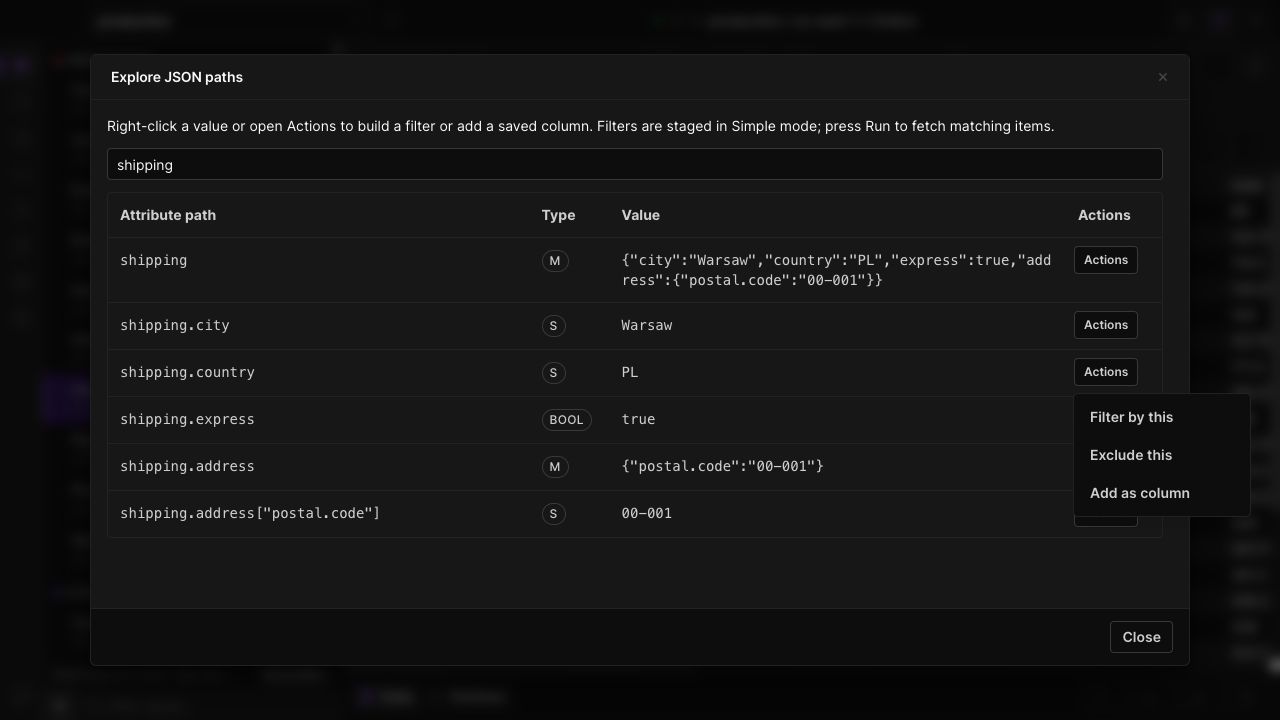
Follow the structure
Browse maps and lists to inspect exact paths and values. Literal dots in attribute names stay distinct from the separators between nested attributes.
Filter with the right type
Create a filter or exclusion from a scalar value. Strings, numbers, booleans and null keep their DynamoDB meaning instead of becoming interchangeable text.
Keep useful paths visible
Add a nested attribute as a grid column. Dynobase saves those column choices per table so they are available when you return.
IN THE APP
How it works
Open Dynobase and follow these steps to use visual json path filtering.
- 01
Inspect an item
Right-click an item in the data grid and open the JSON path inspector.
- 02
Choose a nested value
Find the nested path, then use the value's filter or exclude action. You can also add its path as a column.
- 03
Review and run
Review the staged predicate in the query builder. Run the query or scan when the conditions are ready.